Photos, redesigned from upload to action
Photos sit in a square grid you can reorder, drop in straight from your desktop and annotate in a bigger editor; incidents get an AI analysis card that takes a note and turns hazards into actions; and the iPhone and Android apps catch up with everything added on the web since 1.21.1.
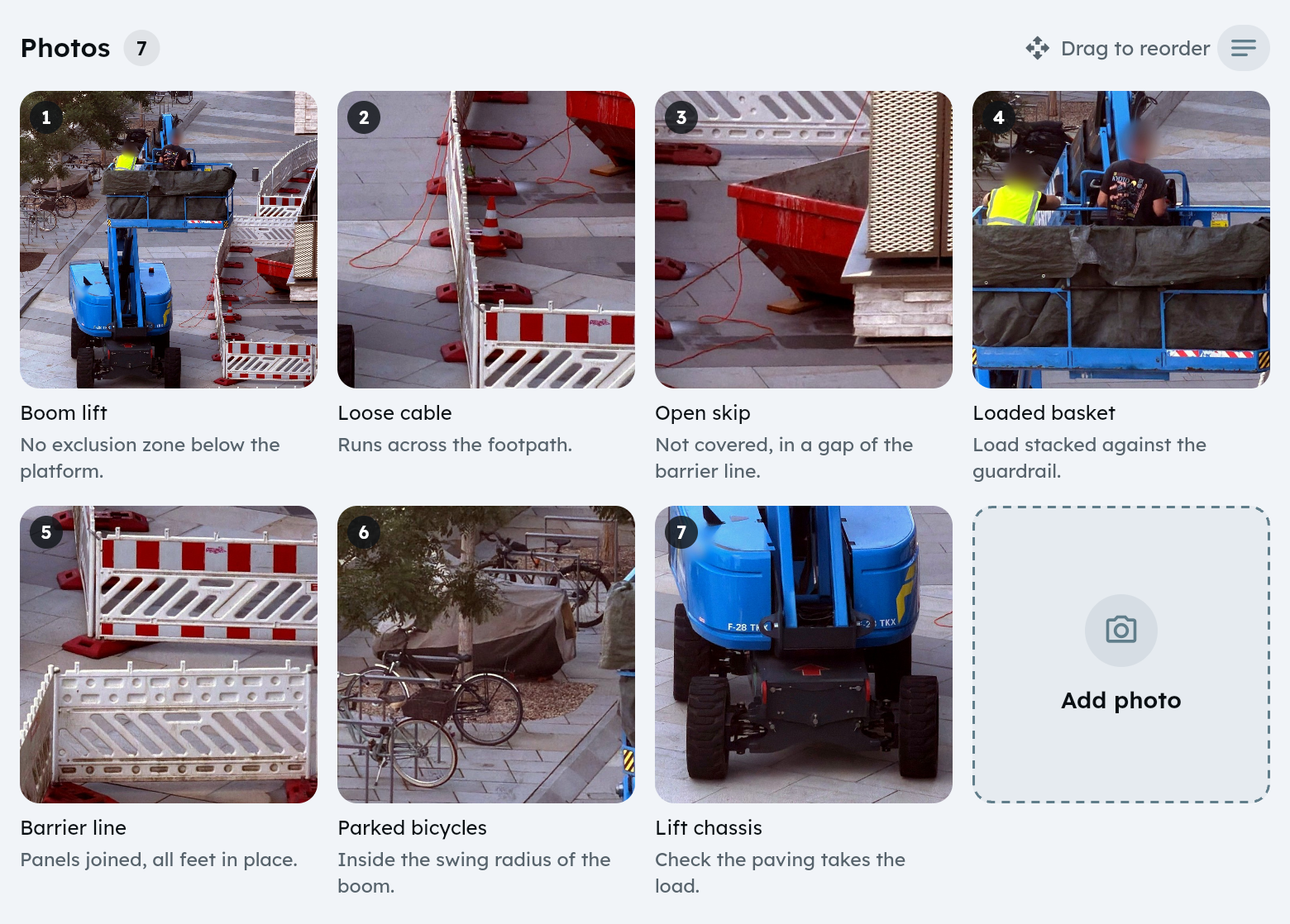
Photos are how a site gets into QuickInspect: the leak, the missing guard rail, the finished repair. 1.22 rebuilds everything around them. Photos sit in a square grid on every record, you can drop them straight in from your desktop, the incident's AI analysis takes a note from you and turns what it finds into actions, and annotating a photo gets an editor with room to work. The iPhone and Android apps also catch up with everything added on the web since 1.21.1.
Photos in a grid
Every photo list, on actions, incidents, inspections, assets and issues, is now a grid of square, numbered tiles with their caption. The last tile is Add photo, so adding another one is always right where you are looking. On a phone the grid shows three photos per row.
Put them in order. Hold a photo and drag it to a new place. On the web a drag handle appears when you point at a photo.
Know what has arrived. Each photo shows whether it is saved on your device, waiting, uploading or failed, with Retry right on the tile. Work offline and a line says so; when the connection is back, Upload now sends everything that is waiting, and one Details sheet lists what is still on the device.
Drag and drop on the web
Drag photos from your desktop or file explorer and drop them onto any photo grid in the web app. The grid lights up with "Drop photos to add them", and the photos are added exactly like picked ones. Files that are not photos are refused, and a file dropped somewhere else in the app stays out of your way.
Read without opening. Point at a photo on the web to see its title and description. Switch on Show descriptions in the Photos header to show up to two lines of description under every photo, on the web and in the apps. QuickInspect remembers your choice.
AI analysis on the incident
Every incident has an AI analysis card under its photos. Pick the photo, add an optional note for the AI (type it or dictate it) with what to look for, and switch on hazard marking. The AI draws a numbered box around each hazard, colours it by your own risk matrix, and fills in the description, incident type and ratings.
Turn the hazards into actions now works right from the card: a review sheet drafts one action per hazard, with a suggested fix, a priority and a due date, and nothing is created until you confirm. Not quite right? Use the note to tell the AI what it missed, and run it again. The photo's own page links back to the card with Analyze on incident, so each incident has one place for its analysis.
One toolbar, a bigger annotate editor
The photo's page has one toolbar: Annotate, Download (in the apps), Restore original, Analyze and Delete. A photo the AI has marked carries an AI-marked label.
Annotate opens a large editor that fills most of a desktop screen, with the photo on a dark canvas so every colour stands out. Draw arrows, rectangles, circles, lines, freehand and text in 7 safety colours and 3 line widths, with Undo and Clear all. On a phone, Save sits at the bottom, within reach of your thumb.
Messages you can see
Messages about photos, annotating, uploads and the AI now appear on top of open sheets and the editor. After you add photos, one message tells you what was added, and what was skipped or could not be uploaded, and why.
Also in 1.22
- A faster Actions register. The register shows your actions within a moment, even with hundreds of them, and moves smoothly from its loading placeholder to the list.
- One look for page titles. Every module now shows its page title in the same typeface and size.
- AI slide images that stick to the brief. When you generate a slide image in the training builder, the picture keeps the subject you described.
- Back to login after an account change. After a password or email change, or when an administrator changes your role or company, the app takes you back to the login screen so you can sign in again.
The apps catch up
Since 1.21.1 a string of improvements arrived on the web first. With 1.22 they are in the iPhone and Android apps too:
- Risk assessments: review AI-suggested risks and countermeasures before they join your catalogue, change a countermeasure's status with one tap and see progress on every risk, and get a clear list of what is missing before an assessment can go to approval.
- Your logo on every report: inspection and incident PDFs open with your company logo and name.
- "How it works" guides for risk assessments, documents, incidents and inspections, each with its workflow drawn step by step.
- The HSE chat on the Free plan, with a monthly allowance, and the entry-level seats of enterprise companies shown as Basic.
Version 1.22.0 is available in the web app, on the App Store and on Google Play.